Mobile App Usage
Navigate the NomadFlowCode mobile app screens and terminal controls.
Screen flow
The app follows a drill-down navigation pattern:
Servers → Repos → Features → TerminalServers
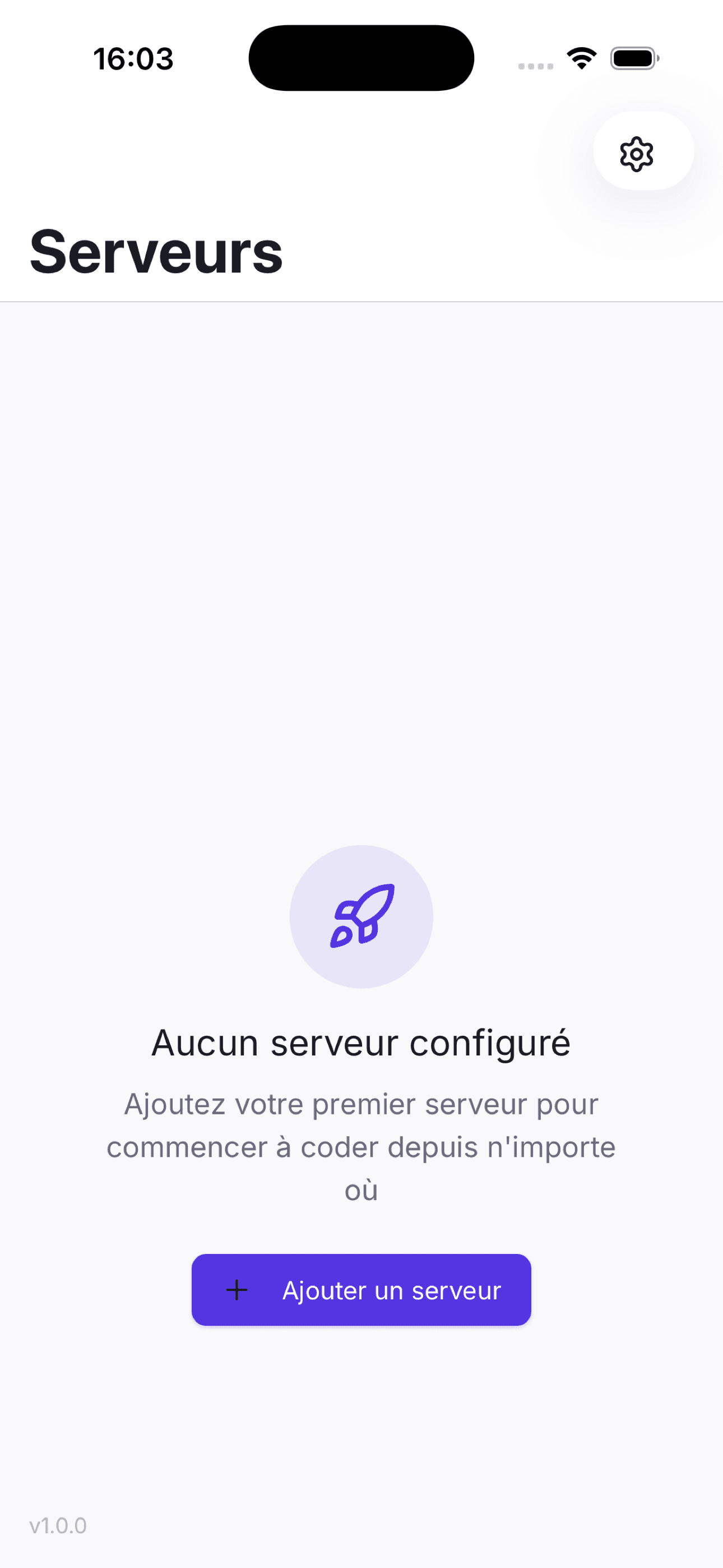
The home screen lists your configured servers. Each server shows its name, URL, and connection status. Tap a server to connect and view its repositories.
Repositories
Lists all git repositories managed by the server (cloned into ~/.nomadflowcode/repos/). From here you can:
- Tap a repo to view its features
- Clone a new repository
Features
Shows all feature branches (worktrees) for the selected repository. Each feature displays:
- Branch name
- Active status (currently selected terminal session)
- Main branch indicator
Actions:
- Tap a feature — switch to it and open the terminal
- Create feature — enter a name and base branch to create a new worktree
Terminal
A high-performance terminal session powered by xterm.js and a native Rust PTY. The terminal connects to a dedicated pane for the selected feature.
Terminal controls
Pan and Zoom
Use standard touch gestures to navigate the terminal view.
Keyboard shortcuts
The terminal supports standard keyboard input. A specialized shortcut bar at the bottom provides quick access to common commands and modifier keys.
Settings
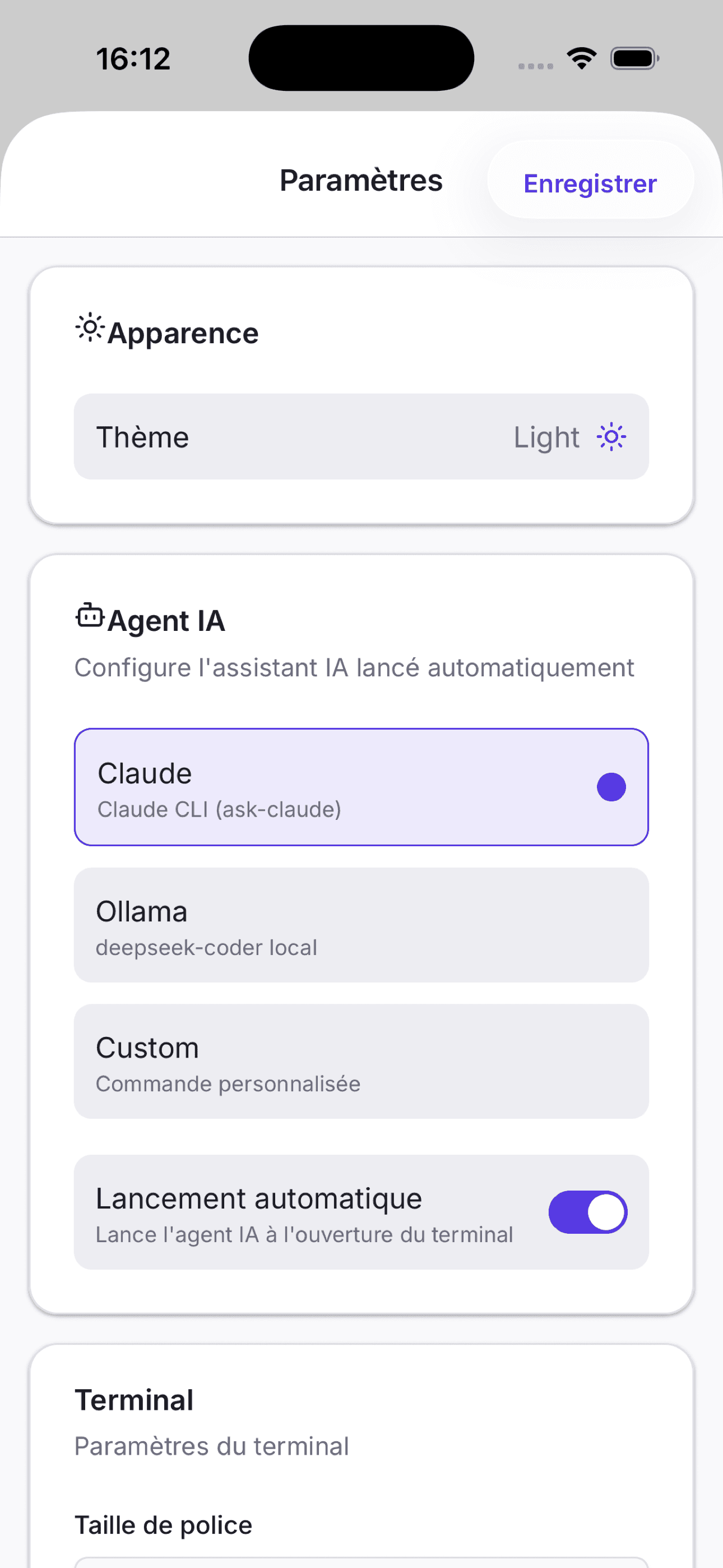
The app stores server configurations locally. You can:
- Edit server details (name, URL, token)
- Remove a server
- Reorder the server list